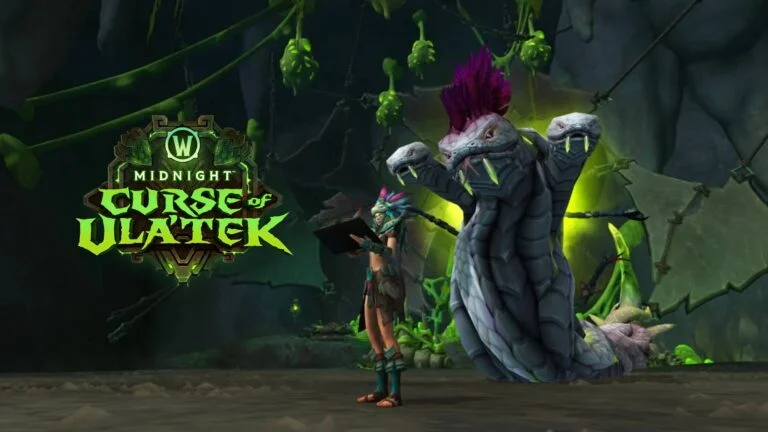





One of the new features coming in Patch 12.1, The Curse of Ula’tek, is a long-awaited integration with Discord!
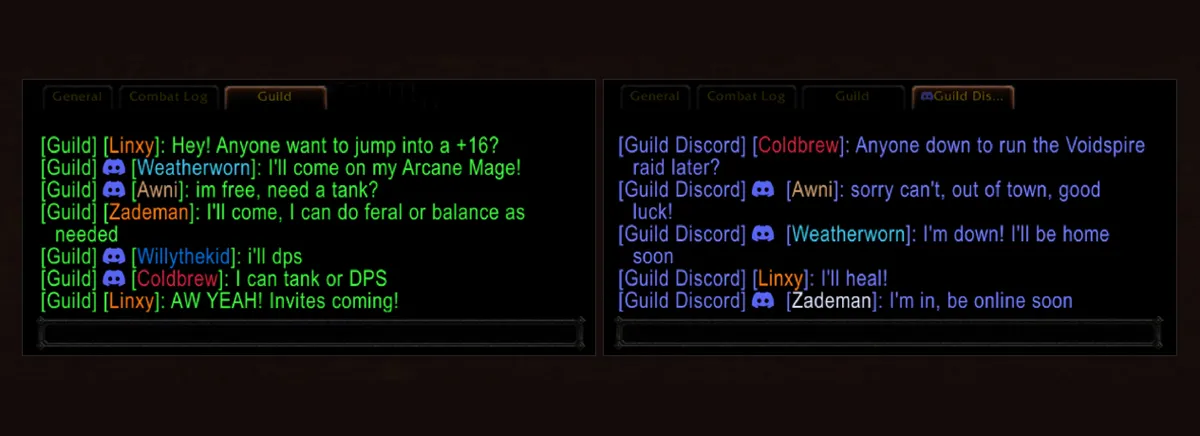
Players will be able to link their Battle.net accounts to their Discord servers and chat seamlessly between both platforms! The blue post provides a great preview of how to set up and what the chat window in-game will look like.
The feature will be available for testing soon on the 12.1 PTR.

Link Your Battle.net Account to Discord in the Curse of Ula’tek Content Update
It won’t be long before you’ll be able to speak with your guildmates both in and out of the game by connecting your Battle.net and Discord accounts to chat with your guild no matter where they are. Whether you’re coordinating your next raid run, looking for more to join you in game for PvP, or just hanging out in your neighborhoods together, you’ll be able to send messages between the two quickly and easily.
This new feature will be available to test soon on the PTR and once it goes live, it will be easy to get set up and started.
Setting Up Discord as an Administrator and Guild Leader
Administrators of a guild Discord will first need to make sure they enable the appropriate channel permissions in order to connect their guild chat to their chosen Discord chat channel.These permissions are as follows:
- Manage Channels – Ability to edit channel settings
- View Channel – Can see and read the channel
- Send Messages – Can post messages in the channel
The rest of your connection can be performed within World of Warcraft by either the guild leader or officers with the correct permissions.
Instructions to link your Guild to a Discord channel on WoW:
- Open the Guild & Communities UI with the (J) hotkey.
- Select the Roster tab on the right side of the panel.
- Select “Guild Settings” on the bottom right of the panel.
- Under the Guild Control dropdown select Discord Settings.
- In this window you will see all Discord servers you belong to and be able to select the specific channels that have linking permissions available.
- Click a server to select it.
- Select a linkable channel from the dropdown and click the link.
- You can also create a separate Discord chat into its own channel within World of Warcraft.
Linking Your World of Warcraft and Discord Accounts
To connect your Discord account to your Battle.net account, you’ll begin by opening up the Game Menu (Escape) and opening Options. In the Social Tab, a new option will show to Enable Discord Functionality.
When you choose to connect your account to Discord, you’ll be taken to some additional screens to finalize the connection. Make sure you’re logged into Discord before attempting to connect your accounts, it will ask you to confirm the connection as well.
You’ll also be able to choose the character name you want to display when chat messages arrive from Discord by selecting it from the Display Name drop down.
- Default: Use game-defined default, currently Last Online Character.
- Last Online Character Name: Use the last online character for your Battle.net account in this guild.
- Discord Global Name: Use your Global Name from Discord.
Chat Between Discord and Your Guild Chat
Once you’re connected, you’re ready to chat. You’ll easily be able to identify when a message has been sent from Discord or sent from within the game and be able to adjust your chat tabs accordingly so you can always keep an eye on what your guild is doing whether you’re in game or out.
Guild leaders will have the option to modify settings at any time in the guild Discord settings to filter chat so that Discord traffic goes to a regular /guild chat channel or into a new dedicated guild /discord channel.
You’ll be able to test this functionality soon on the Curse of Ula’tek Public Test Realm. Keep an eye on the PTR forum for more information. We look forward to seeing you there!