








If you’re planning to jump into WoW to play Forever after a long break, there’s one important thing to know! Blizzard has brought over the addon and API restrictions found in Retail WoW, limiting how much information addons can access and act on during combat. These changes were implemented with the release of WoW Midnight (Early 2026), and WoW Forever is following in it’s footsteps. This means that you can no longer use Weakauras, either.
Don’t fret, though! This doesn’t mean you’re stuck with the default interface. WoW Forever includes several built-in tools to help you track cooldowns, monitor combat performance and customise your UI without relying on both the addons and Weakauras players have traditionally used. I’ve included general instructions for these systems as well, so new and returning players have an easier time with their UI. Here’s how to set them up!
Meet the Cooldown Manager
The biggest change for players who have relied on WeakAuras in the past is the Cooldown Manager, Blizzard’s built-in tool for tracking important abilities and their cooldowns.
The feature pulls information from your buff and action bars and displays it in a dedicated, customisable section of your screen. You can choose which spells to track and adjust where the display sits, making it easier to keep an eye on important abilities without filling your interface with separate addon alerts.
How to Enable the Cooldown Manager:
- Open the game menu and select Options.
- Find the Advanced Options settings.
- Enable the Cooldown Manager.
- Open Edit Mode to move and position the display.
- Type /cdm to customise which spells appear.
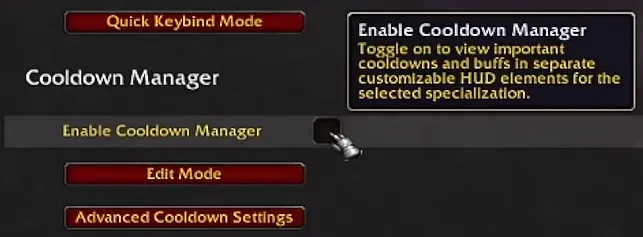
The Cooldown Manager is disabled by default, so you’ll need to switch it on before you can start setting it up. Aside from buffs and spells that you can track, you can also track trinkets and potions, too.
It’s worth remembering that this isn’t a complete replacement for every WeakAuras feature. Custom triggers, advanced combat tracking and automated rotation assistance aren’t supported in the same way under the new API restrictions. The Cooldown Manager is primarily there to make essential ability information easier to see.
Track Your Performance With the Built-in Damage Meter
Damage meters have long been a staple of WoW addons, particularly for players who enjoy dungeons, raids and comparing their performance with the rest of their group. In WoW Forever, you don’t need to install a separate addon to access basic combat statistics anymore!
The built-in Damage Meter lets you review several categories of combat information, making it useful for all roles.
How to Enable the Damage Meter:
- Open the game menu and select Options.
- Open Advanced Options.
- Find the Damage Meter section.
- Tick Enable Damage Meter.
- Open Edit Mode to move and resize the meter.
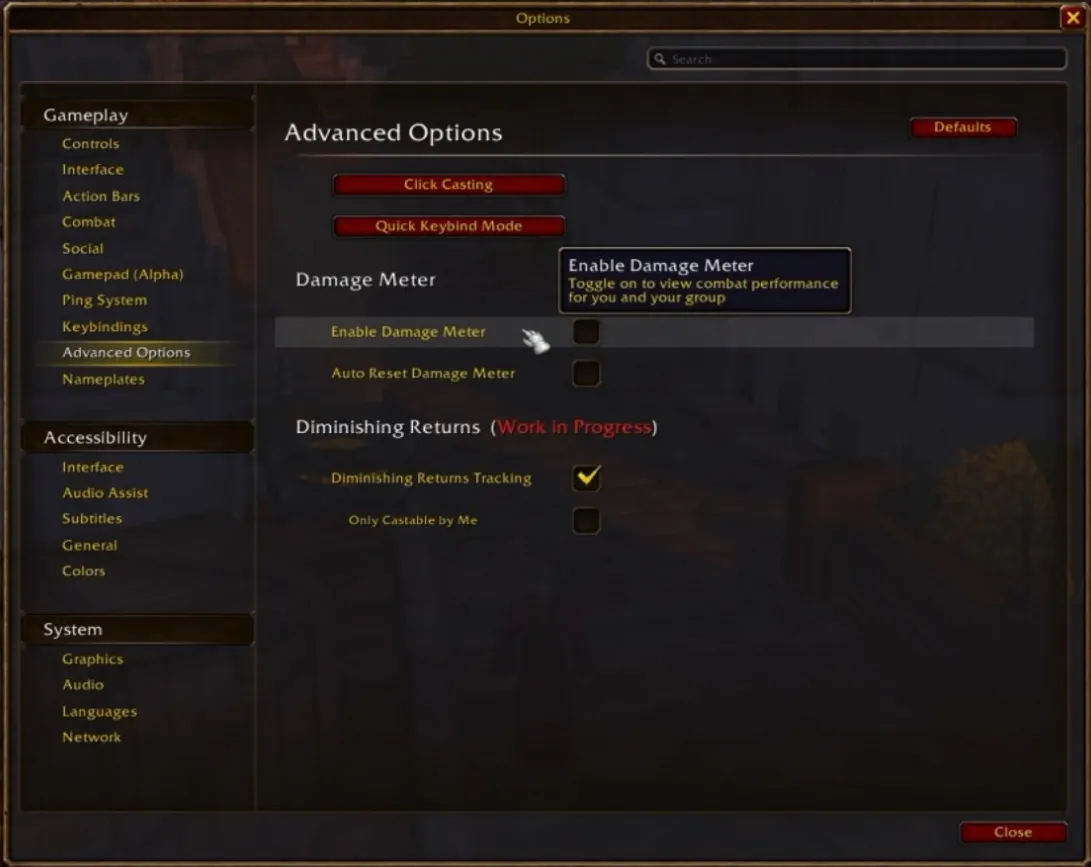
Once enabled, you can select which information appears using the dropdown menu on the meter itself. The settings gear also gives you options to reset the data, adjust the display and create additional meter windows.
Take Control of Your Layout With Edit Mode
Before downloading a collection of UI addons, take a look at Edit Mode first. This is where you can customise the layout of your interface and arrange supported elements to suit your playstyle. You can access Edit Mode in the Escape Menu.
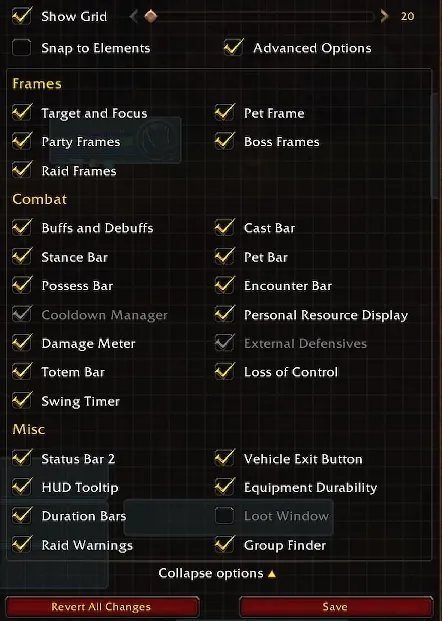
You can reposition elements such as the Cooldown Manager, Damage Meter and much more, adjusting their placement so important information is easy to see without covering the action.
Never Miss a Swing!
WoW Forever includes a built-in Swing Timer, so you don’t need an addon to track your weapon’s attack timing. You can enable the feature through the same settings (in Advanced Options) as the previous elements, and position the supported display using Edit Mode.

A swing timer helps you see when your next auto-attack is due, which is useful for understanding your combat rhythm and timing abilities around weapon swings. If you’ve relied on a separate swing-timer addon in Classic, it’s worth trying the built-in option first.
Use Click Casting for Faster Healing and Support
Healers (or players looking to support their team!) should also check out Click Casting. This feature lets you bind spells to mouse clicks or key combinations while hovering over your unit frames, making it easier to cast abilities on party members without manually selecting each target first. This has been one of my favourite additions to the base game in recent years! You can configure your bindings through the game’s Key Bindings menu under Click Casting.
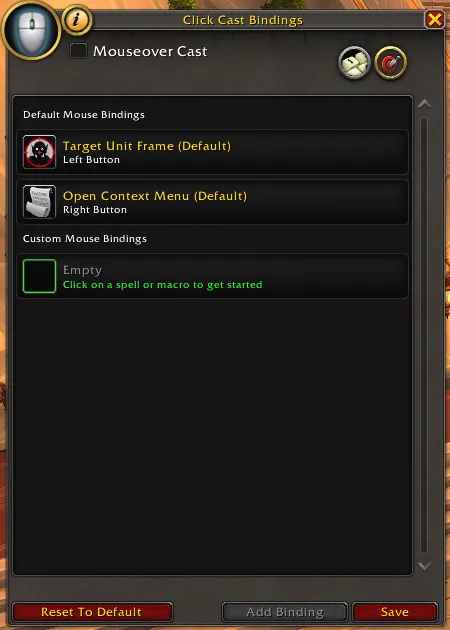
It’s particularly useful when healing dungeons or raids, as well as quickly responding to incoming damage. Instead of relying on an addon to provide this functionality, you can set up your preferred bindings directly in the game now.
Do You Still Want Addons?
If your answer is yes, then you are in luck! WoW Forever hasn’t removed every addon. Instead, its restrictions limit how addons interact with combat information and how they respond to certain protected data, much like Retail WoW.
That means addons built around interface customisation, bags, action bars and other quality-of-life features still have a place, provided they’re compatible with Forever’s API. Older Classic addons, however, aren’t guaranteed to work. Before installing anything, look for a version specifically marked as compatible with WoW Forever.
It’s also worth checking whether the game already has a built-in alternative. The Cooldown Manager, Damage Meter, Swing Timer and Click Casting cover several features players have traditionally turned to addons for.
Get Your UI Ready for Forever
Adjusting to life without your previous Weakauras and Addon setup will take some time, especially if you’ve spent years fine-tuning custom alerts and combat displays. Nonetheless, WoW Forever gives you a useful set of built-in tools to start with, and a fresh start too!
You don’t need to recreate your entire old interface on day one. Start with the information that matters most to you, experiment with the built-in options and build a UI that works for the way you play.