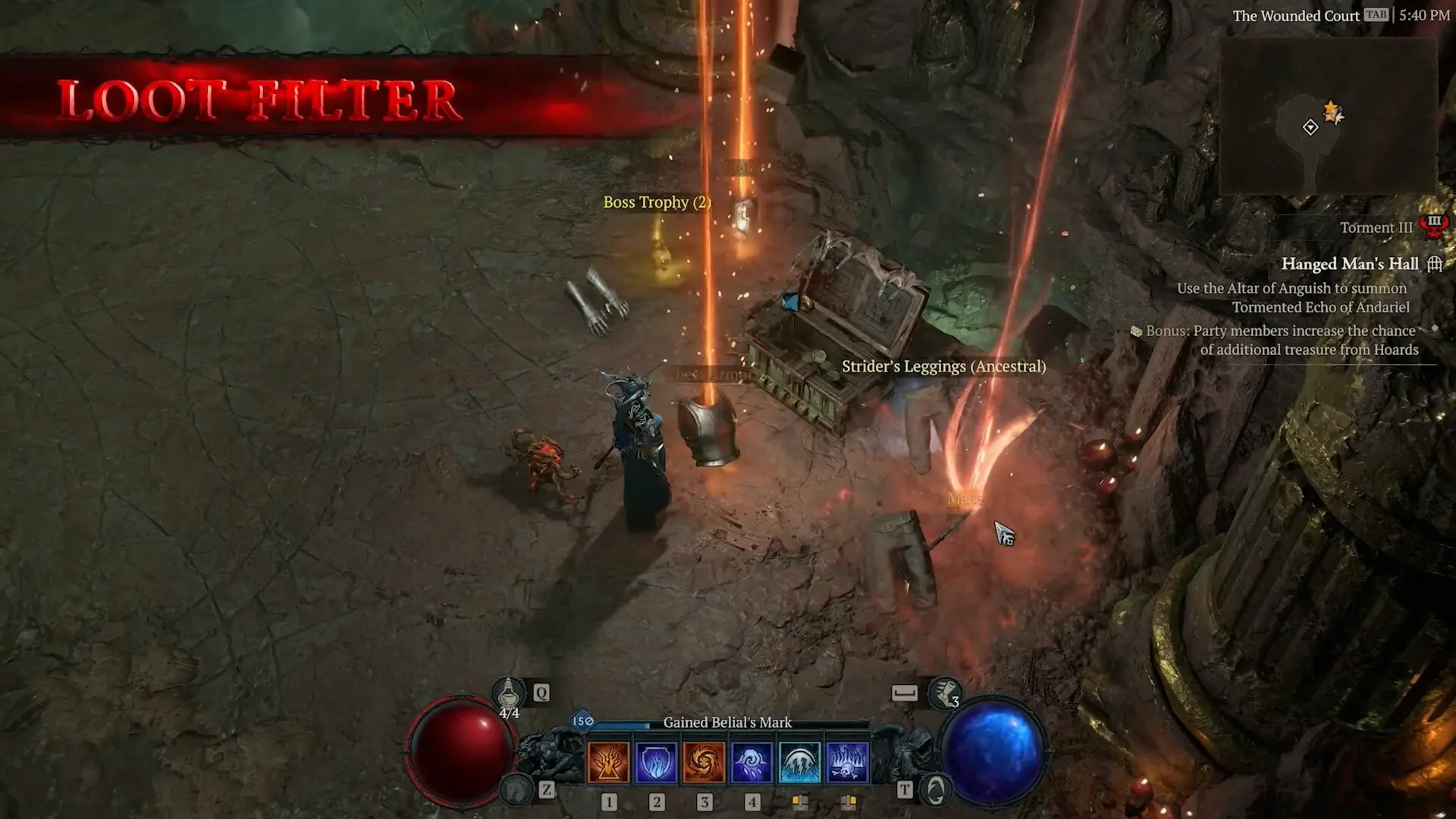
After years of player requests, Diablo IV is getting one of the most anticipated quality-of-life features in the ARPG genre: a built-in Loot Filter. Arriving with the Lord of Hatred expansion, this system lets you hide, highlight, or recolor gear drops so you can focus on what actually matters for your build.
What the Loot Filter Does (and Doesn’t) Cover
The Loot Filter applies to gear items that drop in the world, sit in your inventory or stash, or appear on vendors. It does not affect non-gear items like Temper manuals, crafting materials, gems, or currency.
This distinction matters. With Magic and Rare items now appearing in Torment-level difficulties to serve as crafting bases, this system is specifically aimed at the gear firehose that endgame Diablo IV throws at you.
Building a Filter
You’ll find the Loot Filter under Options > Gameplay. There’s also a toggle to add a Loot Filter shortcut directly to the Game Menu, which carries across all characters on your account.
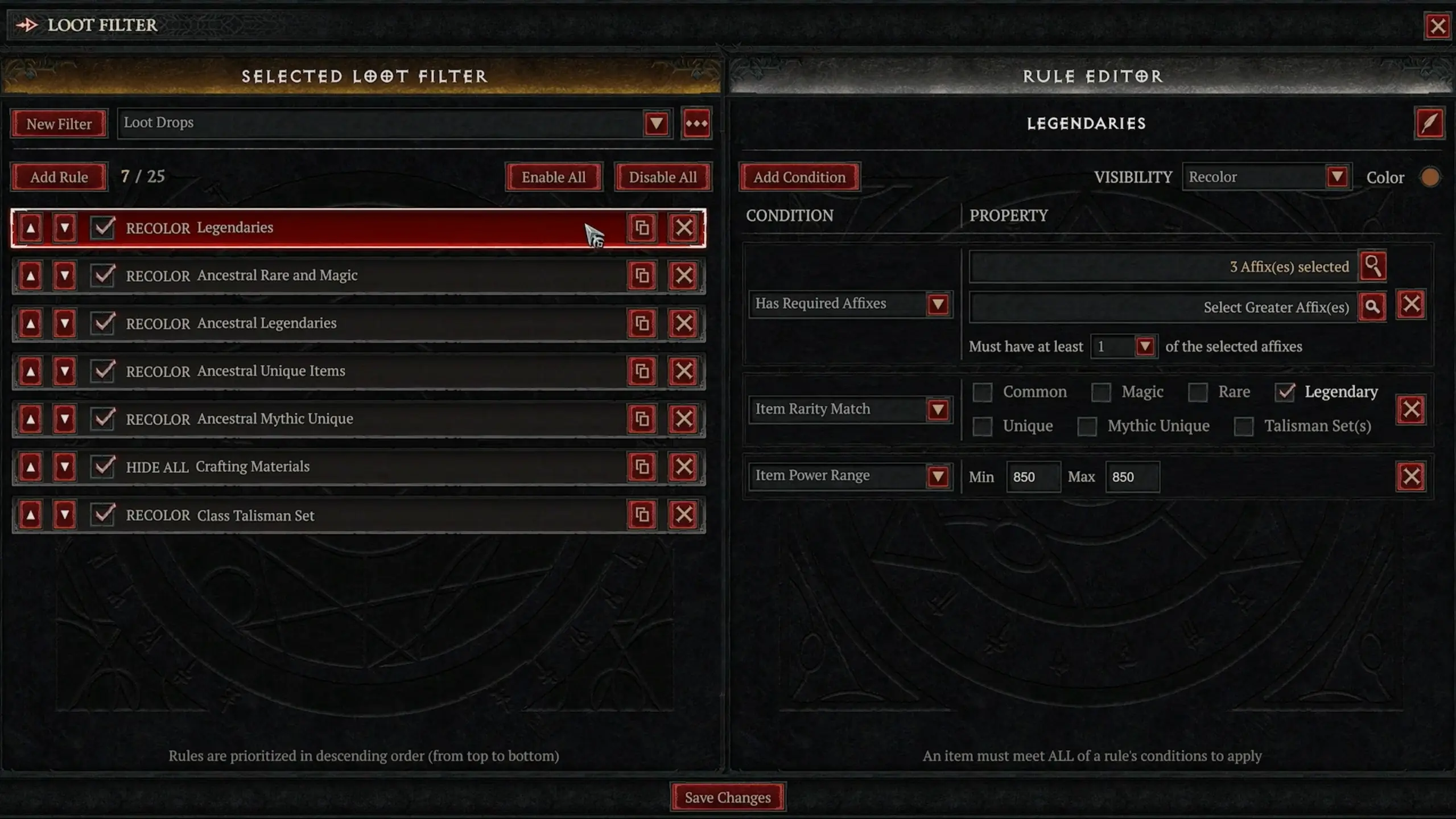
Creating a filter is a layered process: filters contain rules, and rules contain conditions.
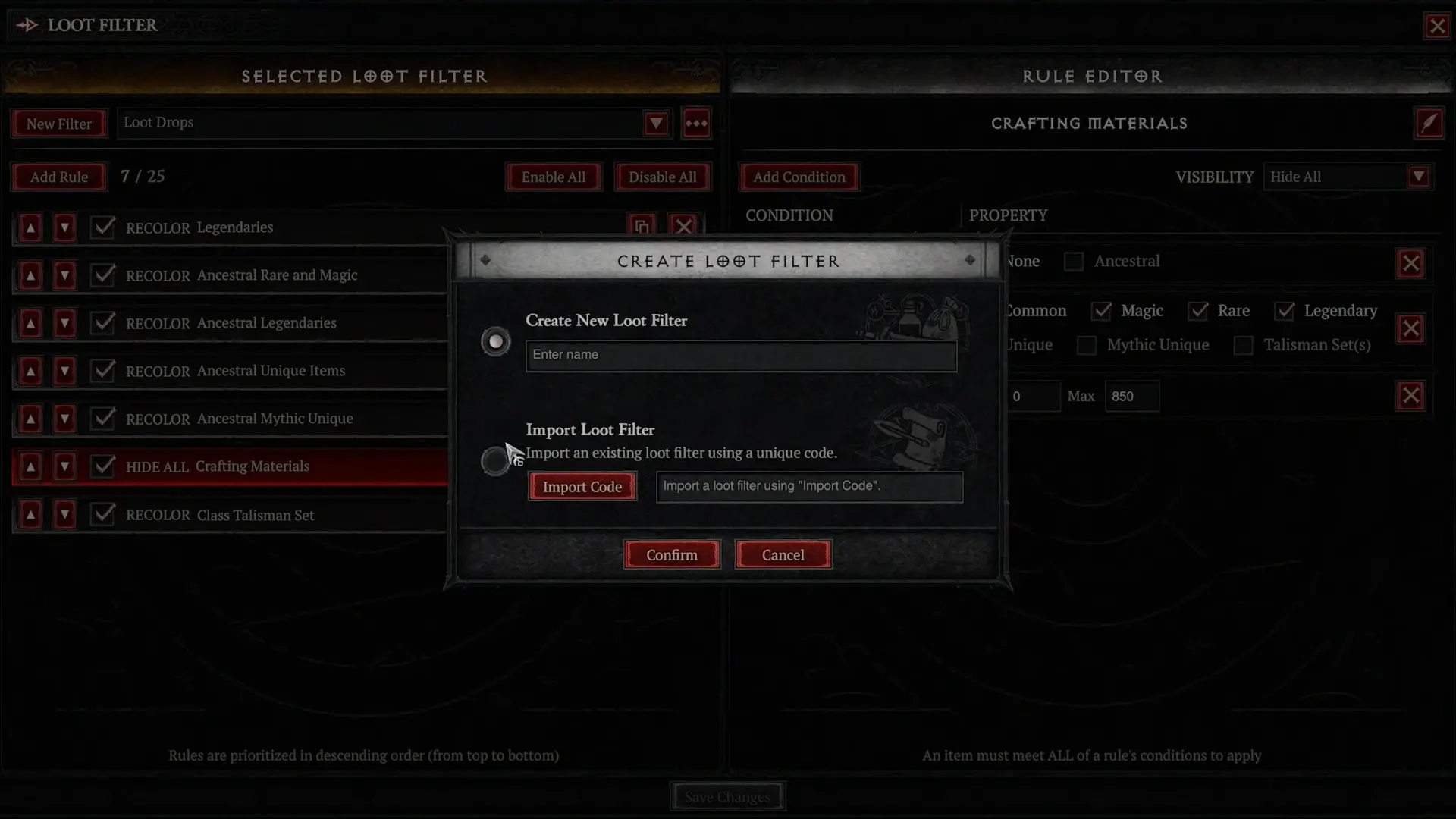
You start by clicking New Filter and giving it a name. From there, you can add up to 25 rules per filter. Each rule then needs at least one condition telling it what to look for.
You can save multiple filters, but only one can run at a time. Individual rules within a filter can also be toggled on or off without deleting them, which is handy if you want a single filter you can adjust for different farming goals rather than rebuilding from scratch.
The Three Rule Types
Every rule does one of three things:
- Hide Text Label/Hide All: Hidden items will show no text and cannot be picked up unless the condition is turned off or the Loot Filter is toggled off. Hidden item types still appear in your inventory, stash, or on vendors.
- Recolor: Change a defined item’s text to make it stand out when it is dropped, in your inventory/stash, equipped, or available on a vendor.
- Show: Used to override other Hide conditions within the same filter. Show is the default state, so it doesn’t need to be defined except to overrule a Hide condition.
Rules apply top-down, meaning a rule higher in the list overrides anything below it. This is the key detail for building filters that actually work as intended.
The 10 Conditions
Conditions are where the system gets truly powerful. You can filter based on:
- Item Power Range. Minimum/maximum power thresholds.
- Item Rarity Match. Common, Magic, Rare, and so on.
- Item Properties. None or Ancestral.
- Codex Upgrade Check. Whether a Legendary Aspect would upgrade your Codex of Power.
- Greater Affix Check. Items with 1 to 4 Greater Affixes.
- Item Type Match. Specify slots like Sword, Staff, Chest, Gloves, and more.
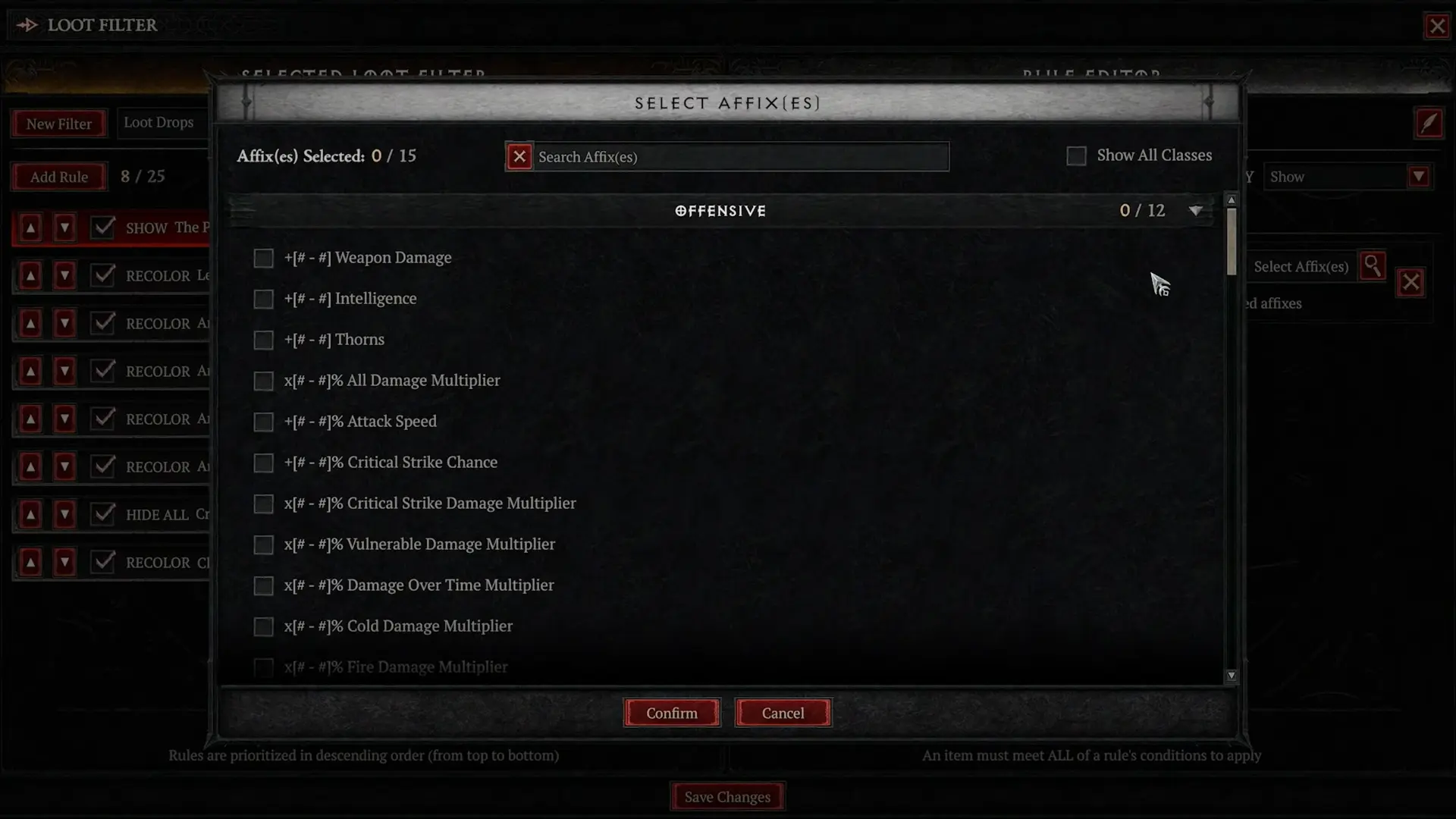
- Has Required Affixes. Affixes the item must have.
- Has Optional Affixes. “Nice to have” affixes.
- Is Specific Unique. Target specific Uniques or Mythics.
- Talisman Set Bonus. Filter for specific Set Charms from the new Talisman system.
Class-specific options like Uniques and Talisman Set Bonuses only display for the class you’re currently on, but alts from other classes can add their own targets to the same rule without disrupting it. This means one shared filter can serve many characters.
A Practical Example
The official example Blizzard provided is a good primer on how top-down ordering works. Say you want to hide all Magic-quality items except ones rolling Willpower:
- Has Required Affixes > Show > +[X-X] Willpower (show all gear that has a Willpower affix)
- Item Rarity Match > Hide All > Magic (hide all Magic-quality items, except items that fulfill a Show rule before it)
The Show rule sits above the Hide rule, so any Magic item with Willpower still drops visibly while everything else gets filtered out. Flip the order, and the Hide would catch everything first, making the Show rule meaningless.
Toggling On the Fly
If you want to peek at hidden loot without disabling your filter entirely, you can bind a hotkey under Options > Controls > Toggle Loot Filter. This is also the easiest way to verify a new filter is doing what you think it’s doing. To test, simply toggle off, check the ground, toggle back on.
Sharing Filters
One of the most community-friendly aspects of the system is that you can export filters as a string to share with friends, or import filters built by other players. Exporting copies the string to your clipboard, and importing is as simple as creating a new filter and pasting in the code.
Expect the community to produce shared filter libraries almost immediately. Build-specific filters for popular Talisman Sets, class-specific Uniques, and general-purpose endgame filters are the obvious candidates.
Why This Matters
Loot Filters have been a staple of ARPG design since Path of Exile made them a community cornerstone, and their absence from Diablo IV has been a frequent complaint across the game’s lifespan. Integrating one natively, with import/export support, a generous 25-rule limit per filter, and direct hooks into new item systems, addresses that gap in a way that is immediately usable at launch.
Lord of Hatred is shaping up to give players significantly more control over both what they’re building and what they’re sifting through to build it.
Lord of Hatred is changing Diablo 4 as we know it. Stay up to date by checking out our Diablo 4 news hub!