






One of the new features coming in next week’s 12.1: Cure of Ula’tek update is very useful, as we’ll finally be able to fully connect our in-game chat and Discord! You’ll be able to send messages between the two seamlessly, and even add your guild chat to a Discord server channel!
The process is an easy one, with a new option in the Social Tab to smooth things out. The “Enable Discord Functionality” option gets you started. As long as you are logged in to your Discord at the time, it’ll be a fast process. You can also choose which name to show, whether its your last online character or your Discord name. Connecting guild chats to your server is a little more complex. However, once it’s set up, you’ll see messages from the channel in-game and vice versa. There’s even a handy icon marking if a message came from Discord.
Here are the full details:

In the Curse of Ula’tek update we’re introducing new Discord integration allowing you to speak with your guildmates both in and out of the game by connecting your Battle.net and Discord accounts. Whether you’re coordinating your next raid run, looking for more to join you in game for PvP, or just hanging out in your neighborhoods together, you’ll be able to send messages between the two quickly and easily.
Linking Your World of Warcraft and Discord Accounts
To connect your Discord account to your Battle.net account, you’ll begin by opening up the Game Menu (Escape) and opening Options. In the Social Tab, a new option will show to Enable Discord Functionality.
When you choose to connect your account to Discord, you’ll be taken to some additional screens to finalize the connection. Make sure you’re logged into Discord before attempting to connect your accounts, it will ask you to confirm the connection as well.
You’ll also be able to choose the character name you want to display when chat messages arrive from Discord by selecting it from the Display Name drop down.
- Default: Use game-defined default, currently Last Online Character.
- Last Online Character Name: Use the last online character for your Battle.net account in this guild.
- Discord Global Name: Use your Global Name from Discord.
Setting Up Discord as an Administrator and Guild Leader
Administrators of a guild Discord will first need to make sure they enable the appropriate channel permissions in order to connect their guild chat to their chosen Discord chat channel. These permissions are as follows:
- Manage Channels – Ability to edit channel settings
- View Channel – Can see and read the channel
- Send Messages – Can post messages in the channel
The rest of your connection can be performed within World of Warcraft by either the guild leader or officers with the correct permissions.
Instructions to link your Guild to a Discord channel on WoW:
- Open the Guild & Communities UI with the (J) hotkey.
- Select the Roster tab on the right side of the panel.
- Select “Guild Settings” on the bottom right of the panel.
- Under the Guild Control dropdown select Discord Settings.
- In this window you will see all Discord servers you belong to and be able to select the specific channels that have linking permissions available.
- Click a server to select it.
- Select a linkable channel from the dropdown and click the link.
- You can also create a separate Discord chat into its own channel within World of Warcraft.
Chat Between Discord and Your Guild Chat
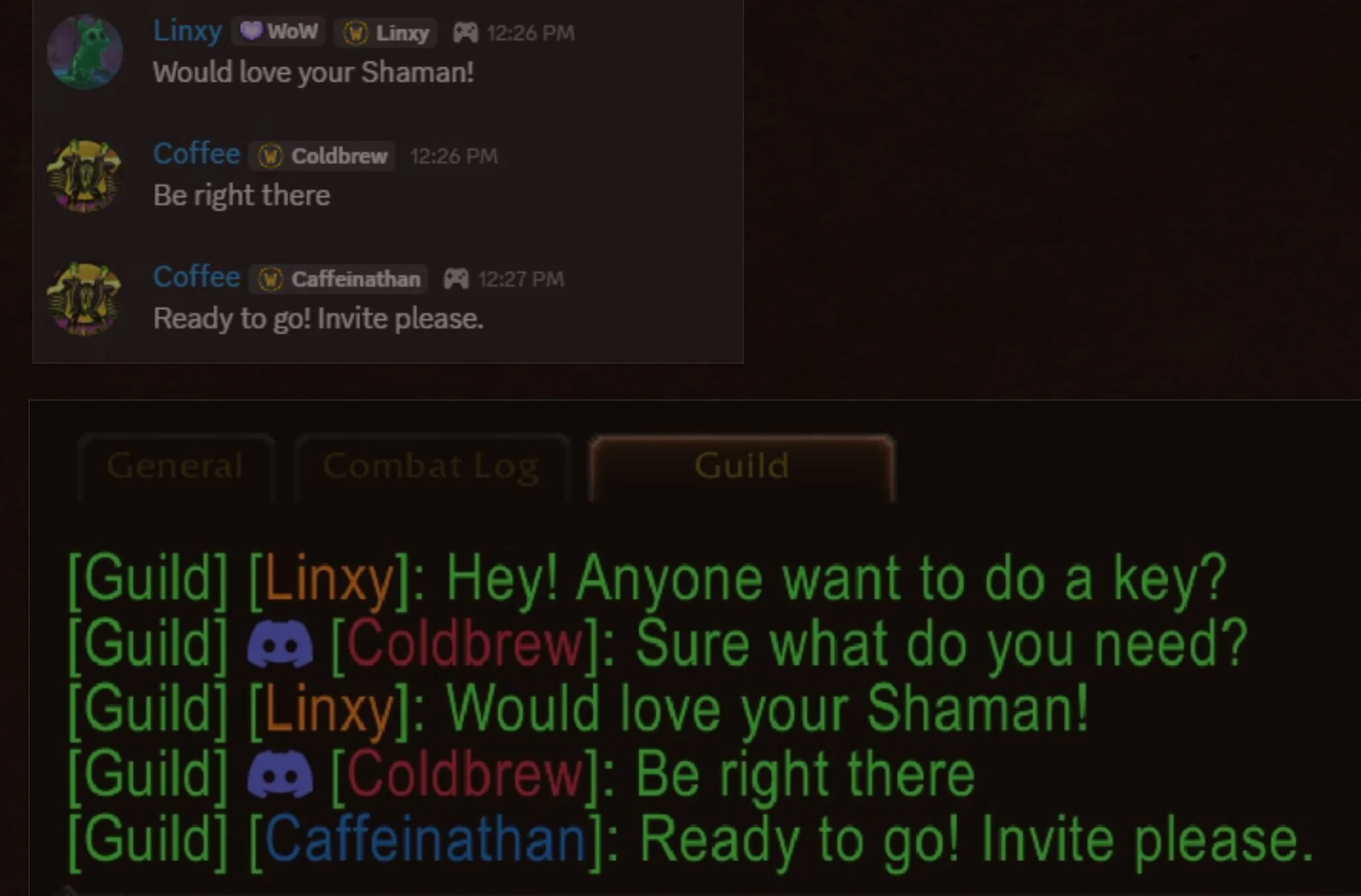
Once you’re connected, you’re ready to chat. You’ll easily be able to identify when a message has been sent from Discord or sent from within the game and be able to adjust your chat tabs accordingly so you can always keep an eye on what your guild is doing whether you’re in game or out.
If a player hasn’t linked their account to Discord, it will not show in-game messages in the Discord chat and will display as follows:
Guild leaders will have the option to modify settings at any time in the guild Discord settings to filter chat so that Discord traffic goes to a regular /guild chat channel or into a new dedicated guild /discord channel.
Join the conversation as this new integration goes live with the Curse of Ula’tek content update.