




 NEW! The Icy Veins app is here
Blueprints are a great tool in the Player Housing system, allowing players to save their own builds, share their creations with others, and even import other players' builds from in-game chat, or with a simple copy-pasted code. In this guide we cover everything you need to know about this incredible feature!
Player Housing: Blueprints
Meet blueprints! A long-awaited and often-requested tool for the Player Housing toolkit, blueprints will finally allow intrepid builders to save their favorite rooms, buildings, or even exteriors. Share your creations, even cross-region, and import other creators' work into your own home with this straightforward, uncomplicated system.

Accessing Blueprints
Blueprints are intended to be a key tool for Player Housing, so you will find the Blueprints button right on your Housing toolbar when entering your home:
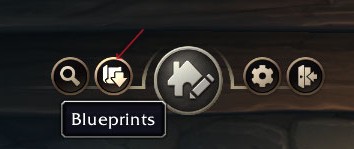
Importing New Blueprints
There are innumerable talented builders in the Warcraft community, and we can FINALLY import their builds instead of trying to replicate them ourselves (as long as they choose to share those import codes, of course!)
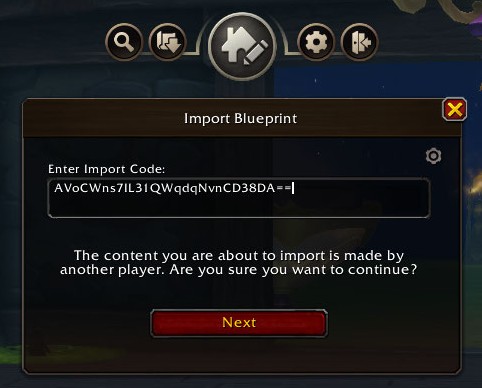
Importing a new blueprint is as simple as copying the code. When importing and placing a new blueprint, the feature will draw your attention to a couple of significant details of the imported blueprint:
- The required room shapes and sizes;
- All the required decor items;
- Total decor budget required.
If you are missing any of the required decor for the chosen import, you can even pop out a full list of the missing items.
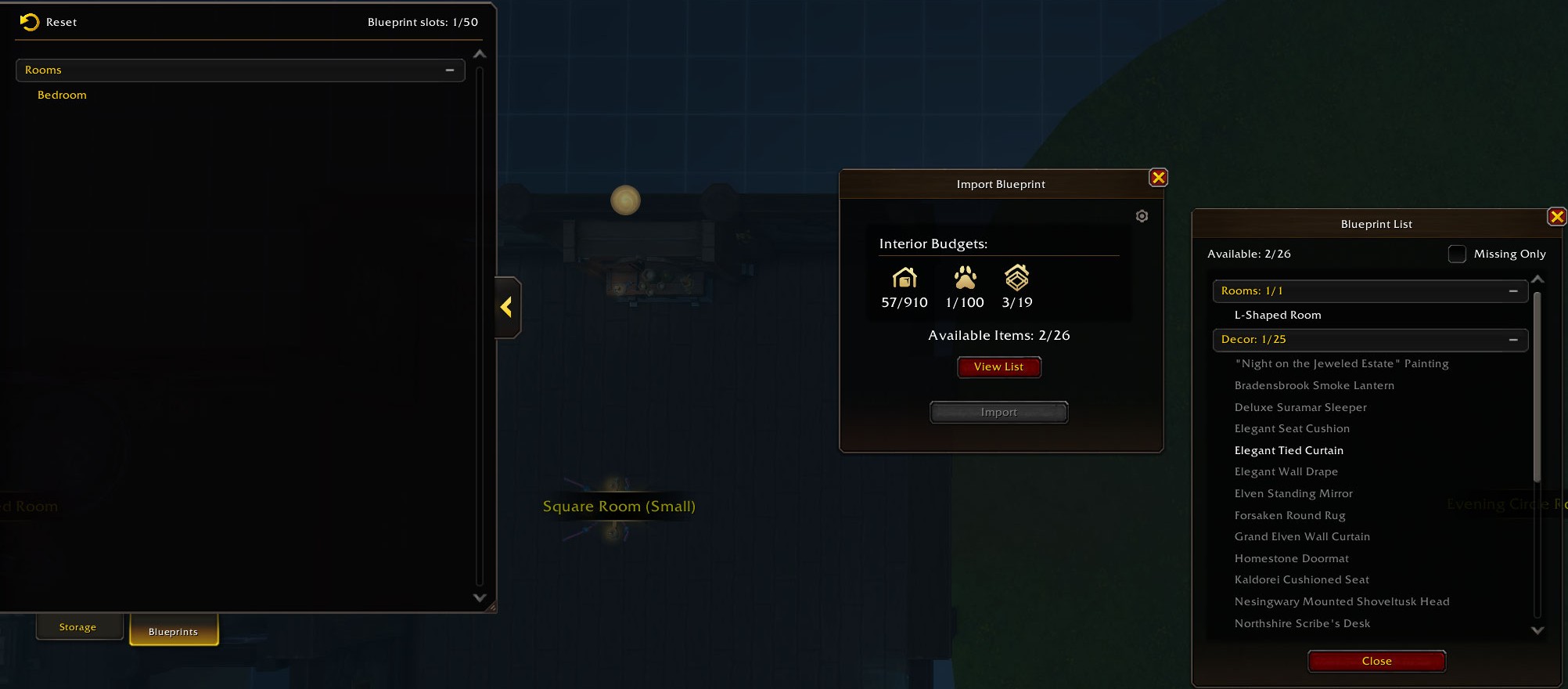
Whenever you import and place a new blueprint, the system will autosave your previous build, as well as offering a RESET button to send all your decor to storage and start over entirely.
Exporting Your Creations
Everything about exporting your own blueprints is extremely simple, right from the get-go. The most difficult part about this process may be choosing which part of your brilliant build to save first!
Export Permissions
The Blueprints system comes with some changes to the Housing Permission settings. Clicking the gear icon on your Housing Toolbar will take you to the Permissions window, where you will notice the Expert Permissions. Allowing anyone to freely save a blueprint of your build enables any visitor to save any part of your house to use in their own, but this is something easily adjusted to limit exports to just friends, neighbors, guildies, or party members.

Choosing What to Blueprint
When deciding to save a blueprint, the first choice you will need to make is which portion of your build to save. You have the option of exporting just a room, your entire build, or just the exterior.
Hit the Blueprints Button on your Housing Toolbar, then click SAVE BLUEPRINT for the available export options.

Currently, the system allows for 50 saved blueprints, with an additional 10 native slots for system "autosaves" states that fill automatically any time you IMPORT a new blueprint and change your build drastically.
Sharing Your Blueprints
Once you have chosen what part of your build you'd like to save and given it an appropriate name, the Blueprints interface pops up with a handy dialogue box and several new options. From here, you can simply go to your saved blueprints to check out what you've got so far, or, if you are ready, the code is already generated and ready for sharing! Blueprint codes can be shared in chat or copied to your clipboard for sharing online with your followers or Discord friends.

Blueprint Limitations
While the Blueprints system is easy to navigate and very straightforward, it does have some limitations that are important to understand, particularly for builders who might be interested in sharing their builds online with viewers and followers.
Region Restrictions
While blueprint codes CAN be shared cross-region, unfortunately they cannot currently be shared between China and the rest of the servers. NA, EU, and KR users can freely share their beloved homes with each other though!
Exterior Restrictions
Because Horde and Alliance have access to entirely different exterior customization options, exterior-only AND full build blueprints are NOT cross-faction. The blueprint cannot apply a Night Elf-style housing kit to your exterior if you are Horde, which halts the blueprint import entirely. Thus, be sure to correctly label the faction on your own exterior and full build blueprint exports, and check the faction of any that you hope to save.
Because interiors are entirely faction-agnostic, they are completely universal. If you are missing pieces of decor, the build will still import, so faction or race-locked decor items will not prevent you from obtaining a cool new room! However, coming up short on decor budget will entirely halt an import, so ensure you have enough budget first.
Blueprint Codes Are Not Perpetual Saves
This is the biggest restriction to be aware of with the Blueprints system. Importing a blueprint does not make it "yours" in any way; it will not be added to your Housing dashboard, it is not saved as your blueprint. In order to permanently save a build you really love, be sure you are blueprinting that build yourself.
In the same vein, if the blueprint creator deletes their blueprint, the import code will no longer work. Once again, if you love an import, ensure you save it in your own blueprints!
Blueprint codes are also quite finicky, in some ways. They cannot be updated at all, so making a change to your popular build will require you to share your updates with friends via an entirely new code. Likewise, if you are extremely dedicated to a particular build or creator, you will need to check periodically for updated codes if you want your home to remain as current as theirs!

Changelog
- 05 Aug. 2026: Guide added.
